


The search, cart addition, and payment process on the booking platform can be divided into several stages.
We list them below:
1) Search for your solution:
- Go to the page Search and book
- Enter the dates and the number of guests in the form to view the availability of the huts
- Click the book button for the hut you want to book. Remember, you can make multiple bookings in a single purchase
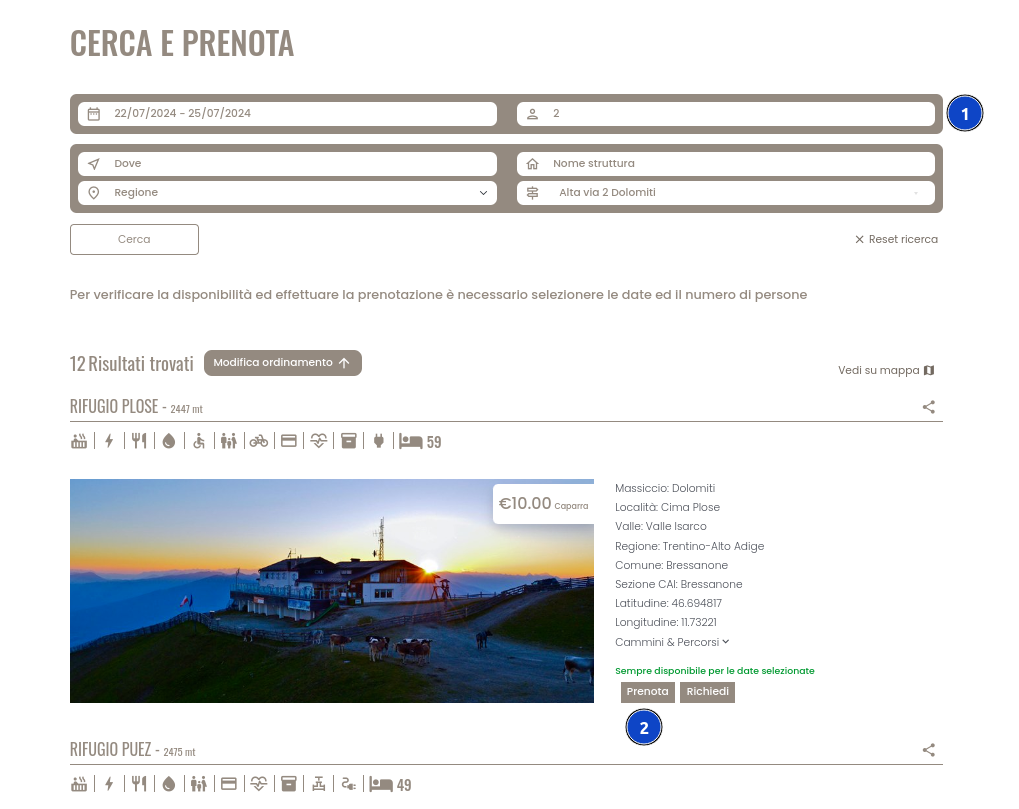
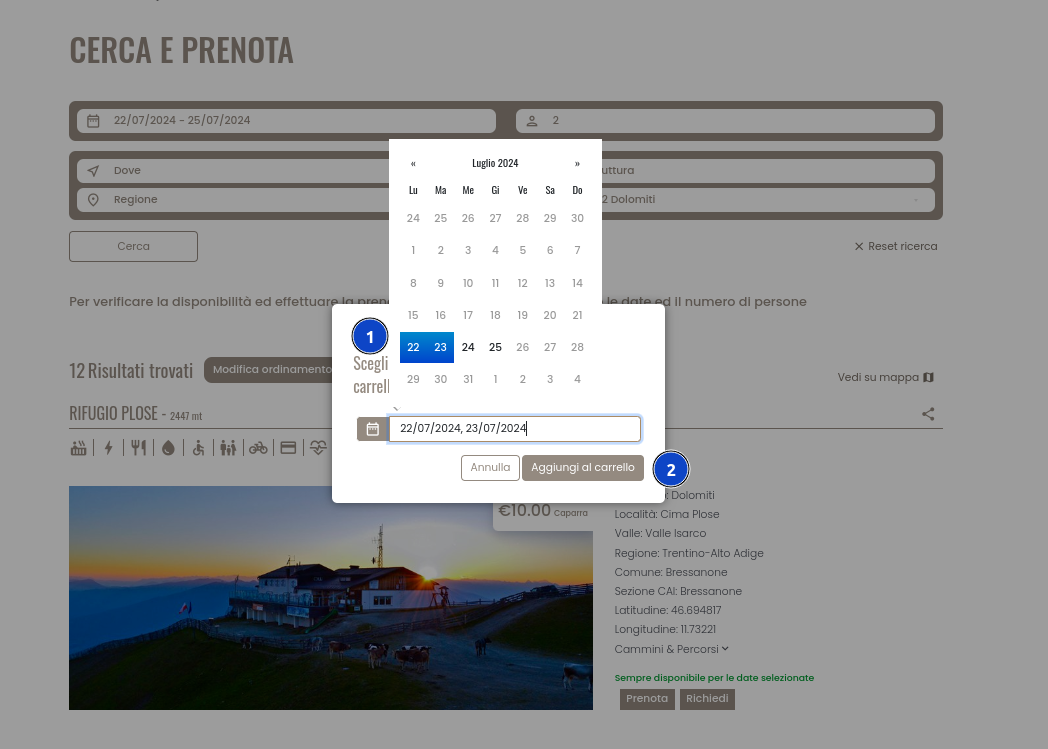
2) Select the dates:
- Select the dates
- Click the "Add to cart" button
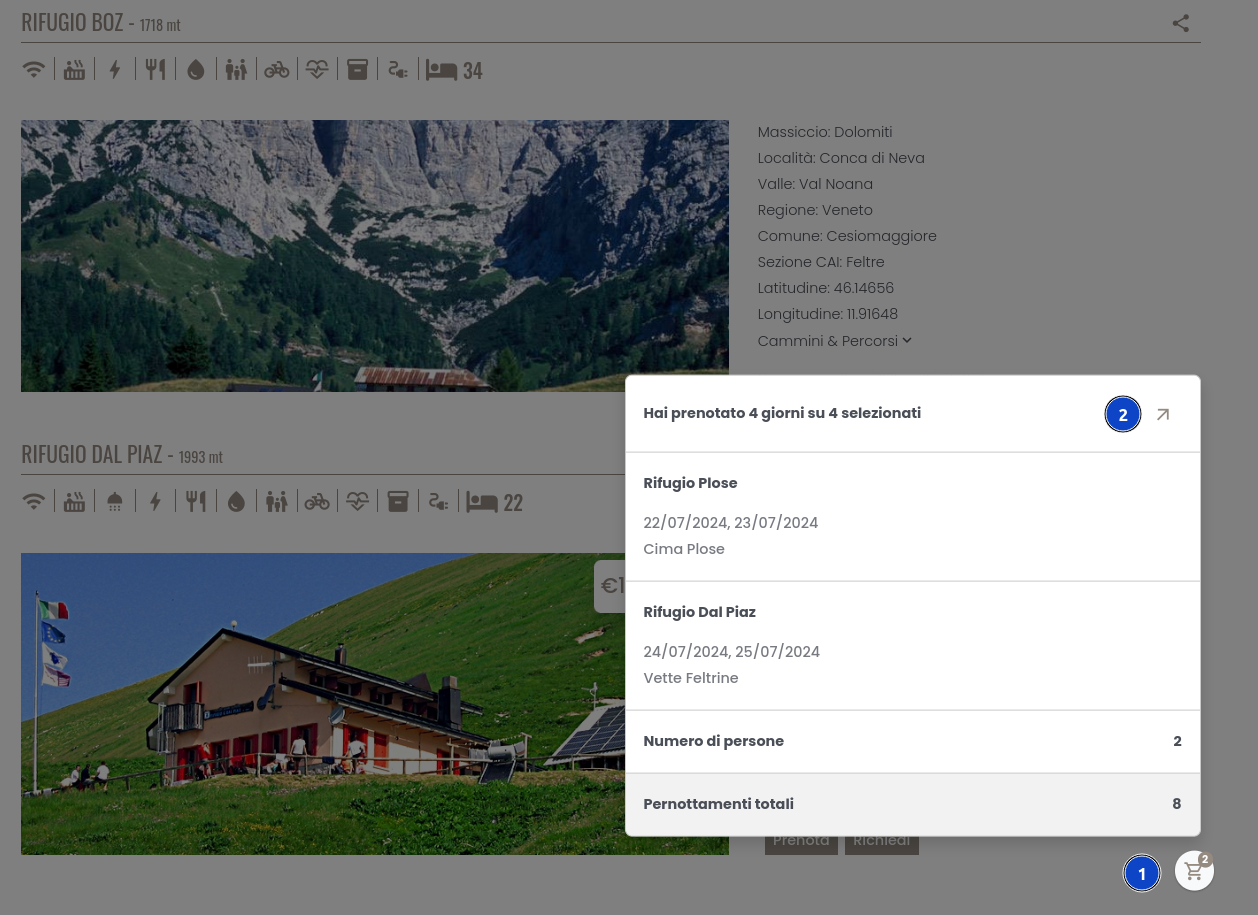
3) Check the bookings added to the cart:
- Clicking on the cart icon allows you to preview the bookings added to the cart
- This icon, as well as the one in the header menu, leads to the cart
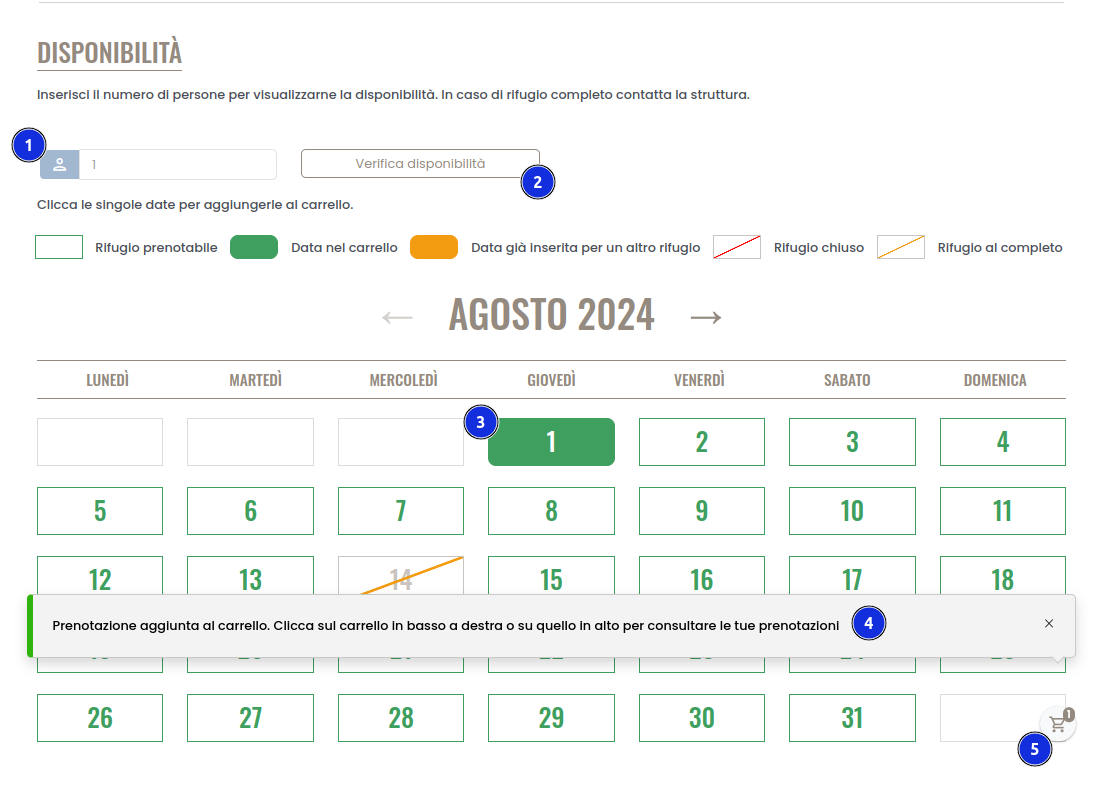
4) If you are booking only one hut:
Go to the detail page of the hut you want to book and scroll to the bottom of the page where you see the calendar
- Select the number of people
- Click on "Check availability"
- Select the date(s)
- A message will appear confirming that the booking has been added to the cart.
- Click on the cart to finalize the booking
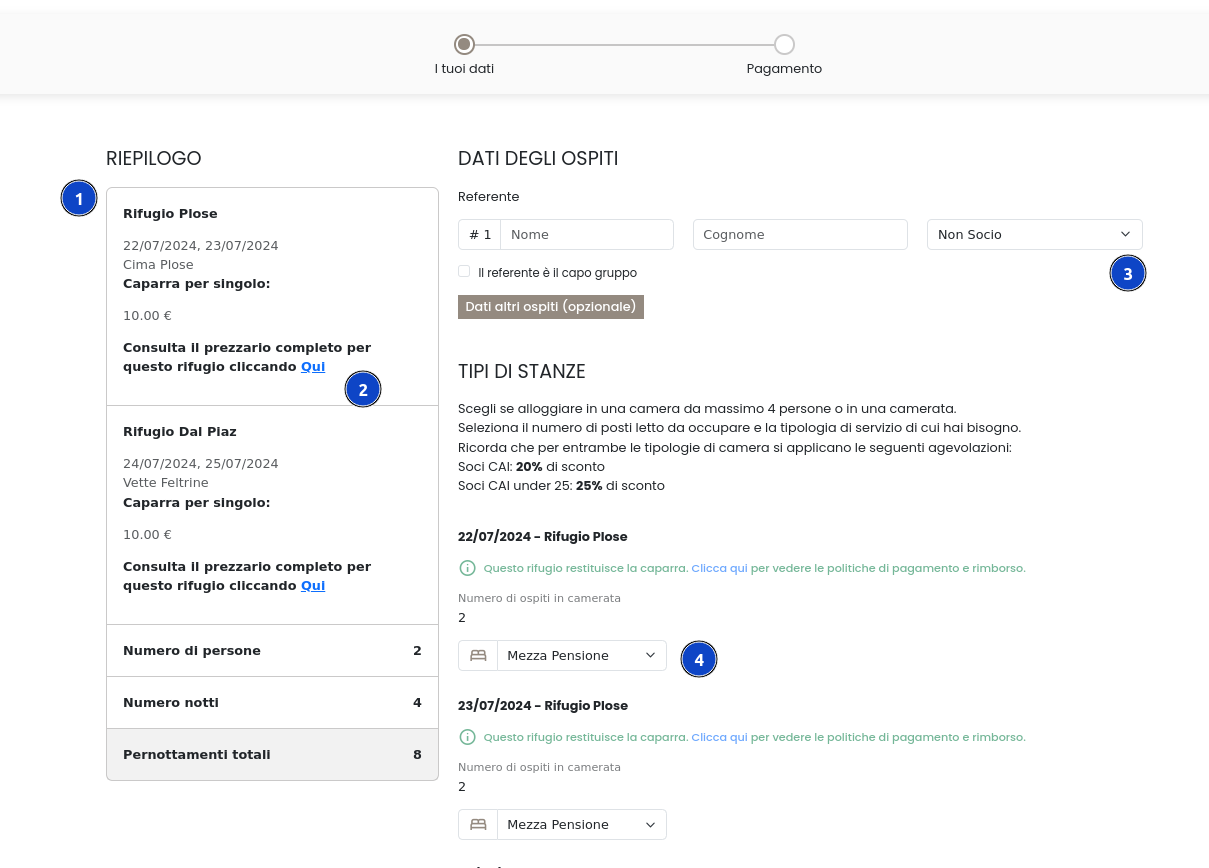
5) View the summary and enter the details:
- View the summary
- If necessary, check the price list of the hut
- Enter the contact details and, if applicable, the details of the other group members
- Select the type of service for each group member
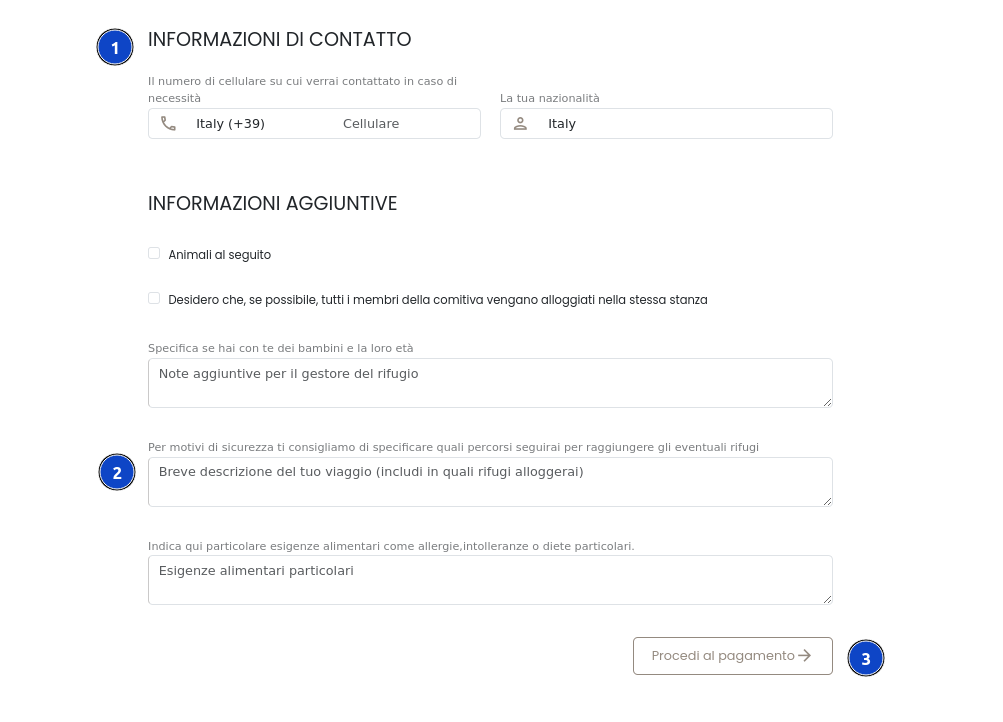
6) Enter contact and additional information:
- Enter the contact information
- Enter additional information, paying particular attention to providing details that may be useful for your safety in the mountains
- Click on "Proceed to payment"
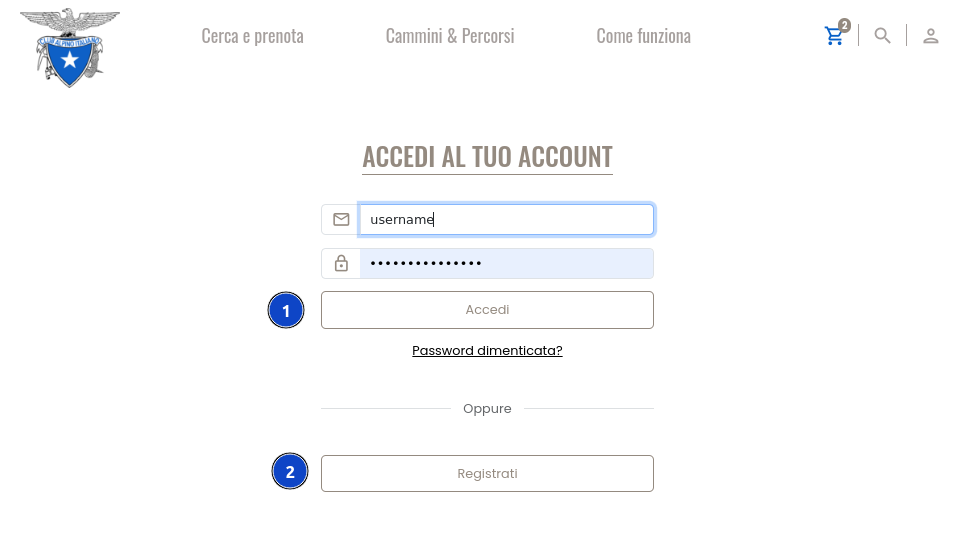
7) Log in or register:
- Log in to your profile
- If you don't have a profile, create one in a few clicks!
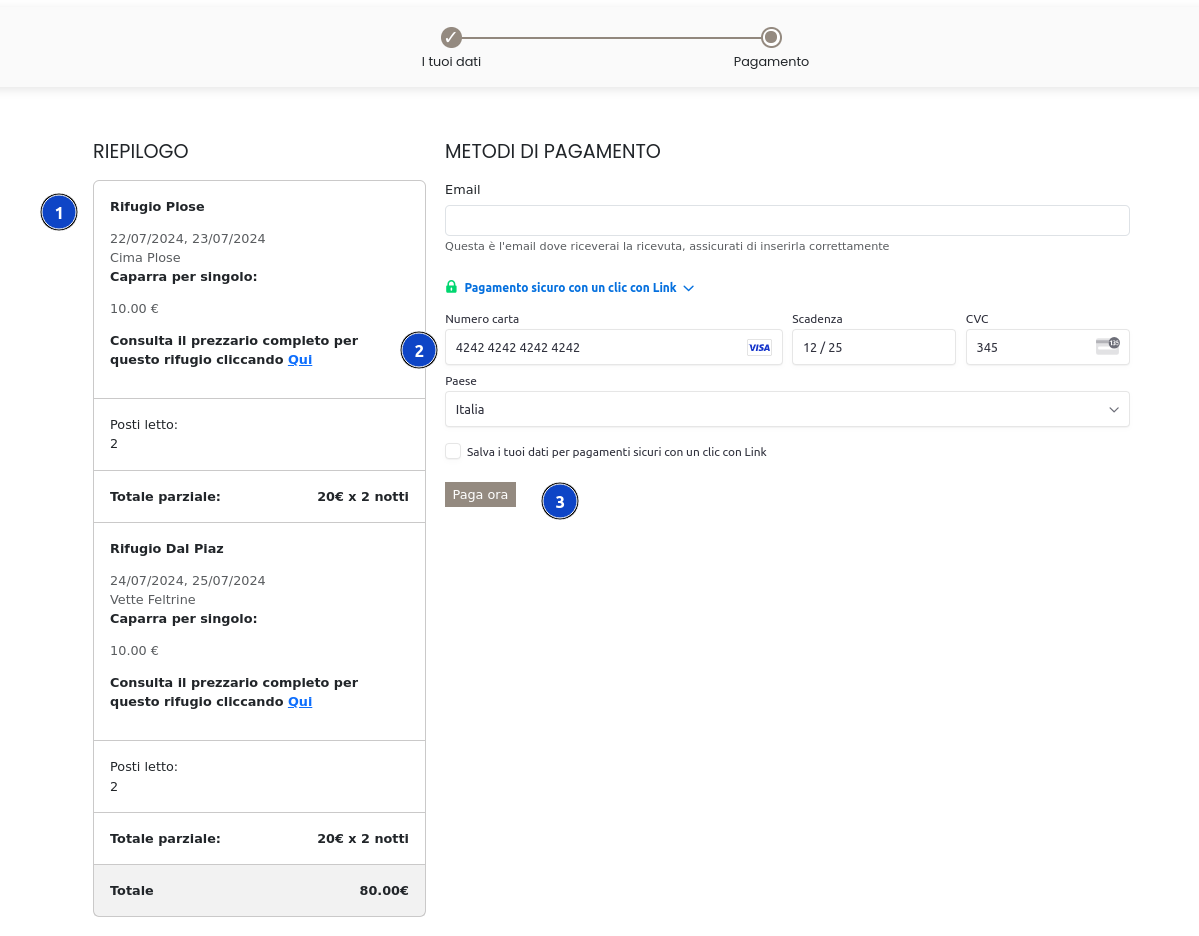
8) Summary and payment
- View the summary
- Make the payment
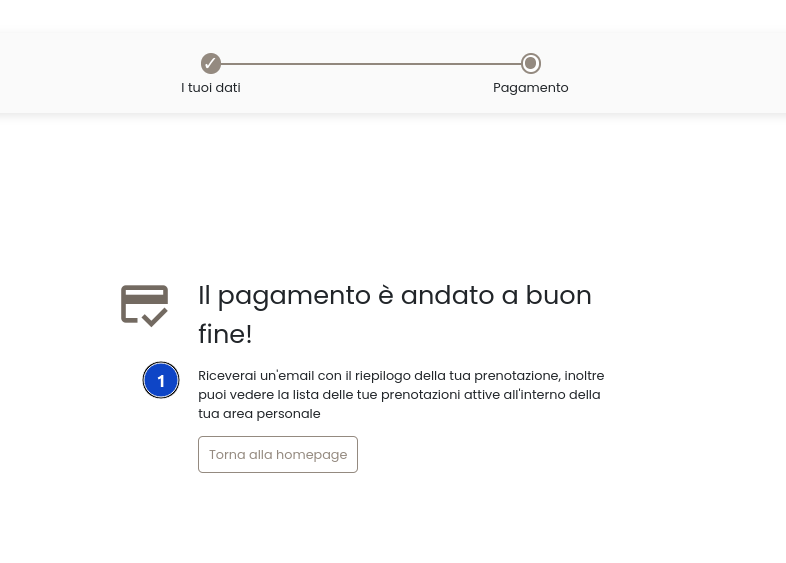
9) Completion of the operation:
- An email with the details of your booking has been sent to you
Domande frequenti
For any technical problems or difficulties using your reserved area and its features, our team is at your complete disposal.
Dedicated assistance: we are available from Monday to Friday (9:00 AM – 12:00 PM and 3:00 PM – 5:00 PM) via email at assistenza.gestori@cai.it and by phone, both for technical support and to help you optimize your portal content.
In addition, to help you resolve the most frequent doubts independently, we invite you to consult our Official YouTube Channel “Prenota Rifugi”. We have created a series of short dedicated video tutorials where you can see step-by-step how to:
-
Customize your page: enter general data, descriptions, geographic information, and kitchen hours.
-
Configure your offer: set price lists, manage seasonal openings, bed layouts, and staff profiles.
-
Manage bookings: enter manual bookings, consult the real-time calendar, and monitor the daily arrival list.
-
Manage cancellations and refunds: configure your Stripe account and handle refunds.
“Prenota Rifugi” platform is open to both Italian Alpine Club (CAI) structures and any other accommodation facility (private huts, stopover points, guesthouses, B&Bs) located along hiking routes, trails, and Alte Vie. Joining the platform allows you to digitalize bookings and manage your facility completely independently.
If you wish to receive information on how to join and the costs of the service, you can write to us directly at: assistenza.gestori@cai.it
⚠️ ATTENTION: PRENOTA RIFUGI ASSISTANCE DOES NOT MANAGE INDIVIDUAL HUTS!
Through our assistance service, it is NOT possible to book beds, check remaining availability, change dates, or request refunds. For any questions regarding availability, refunds, timetables, or trails, you must exclusively and directly contact the individual hut using the contact details on its page.
Cancellations are managed completely independently from your reserved area (see question “Can I modify or cancel a booking?”).
👉 info.prenotarifugi@inera.it You can write to us here if you need assistance with your booking, for technical problems with the website, or if none of the FAQs on this page have clarified your doubt.
Yes, here is how to proceed:
- To MODIFY the booking (e.g., change dates or number of people): You must contact the hut directly via email or telephone. It will be up to the hut manager to accommodate the request based on their actual availability.
- To CANCEL the booking: You can do it completely on your own by logging into your reserved area from this page: https://www.prenotarifugi.cai.it/en/reserved-area/ Once the online cancellation is completed, the hut will receive the request and will approve the deposit refund (according to its own cancellation policies) directly onto the credit card you used.
In the event of a no show without having cancelled online within the deadlines set by the hut, the hut manager has the right to retain the entire amount of the deposit paid, according to the conditions indicated on the hut’s profile page.
Each hut is autonomous and sets its own conditions, deadlines, and eventual penalties. The days within which you can cancel without losing your deposit and the refund percentage are clearly indicated on each hut’s profile page and in the summary before payment. In the event of a timely cancellation, the hut will approve the request, and you will receive the refund directly onto the credit card used.
Important note on the refund amount: The refund is calculated based on the percentage established by the hut in its conditions. In any case, even when a 100% refund is granted, the amount credited back to your card will be deducted by transaction fees and bank costs (approximately 4%), which are retained directly by the payment processing networks.
Yes, to book it is necessary to pay a deposit by credit card. The deposit amount and the cancellation and refund policies are established by the hut.
If the hut has activated the online booking function on our platform, its opening periods and real-time availability are visible both in the search results and on the hut’s profile page (via the calendar at the bottom of the page).
If, on the other hand, the hut only shows an information page on the platform (without an active calendar), it means that to check opening times and availability, you must contact the structure directly via email or telephone using the contact details provided on that page.
Note: The platform’s technical support does not have access to the huts’ internal registers and cannot check availability or make bookings on your behalf.
This wording can indicate that:
- the hut has not yet joined the platform;
- the hut manager has an information page on the platform but has not yet activated the online booking function;
- the availability calendar has not yet been opened by the hut manager.
What to do? In these cases, it is advisable to contact the hut directly using the contact details found on the hut’s profile page.
Yes, the platform was created specifically for this purpose. “Prenota Rifugi” allows you to book multiple different structures within a single transaction. Here is how to do it:
- Go to the “Search and Book” section.
- Search by geographic area or route, entering the dates and the number of people.
- Select the first hut and click on the specific date of the night you will sleep there (please note: you do not select check-in/check-out, but the single night you occupy the bed).
- Add the spot to the cart, continue to select the second hut for the following night, and so on.
- Once the itinerary is complete, go to the Cart and proceed with the single payment of the deposits.
Yes. At the end of the payment, you will receive an email with the booking summary. We recommend keeping it carefully: inside you will clearly find the amount paid, the date of payment, the method used, the receipt number, and the details with the dates and the booked structure.
(Note: To access your reserved area and manage the booking, you can do so at any time by clicking on the user icon located at the top right of the navigation bar on the main page of the platform).
Yes. To complete a booking, it is necessary to create an account: during the booking process, you can log in if you already have an account or create a new profile. Registration is essential to allow you to access your reserved area and independently manage confirmations or cancellations.